December 25, 2025
How to Install IPTV on Firestick — Complete 2026 Guide
Step-by-step guide to installing IPTV on your Amazon Firestick in 2026. Works with any IPTV subscription. Takes less than 5 minutes.
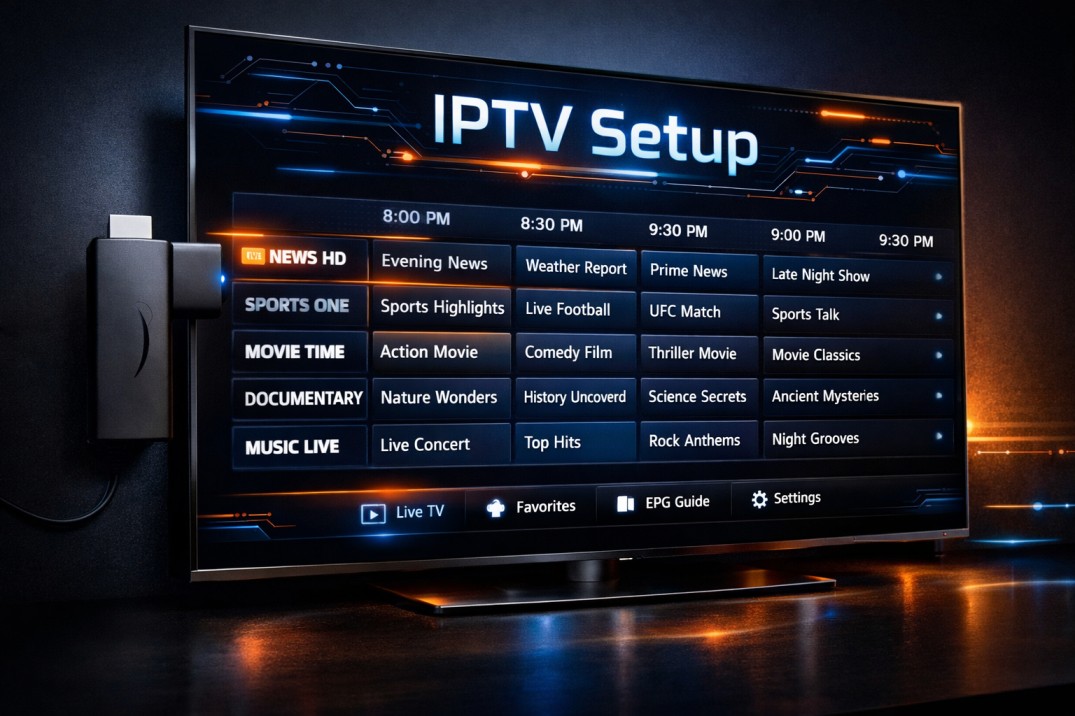
Installing IPTV on an Amazon Firestick is one of the easiest ways to stream 45,000+ live channels, movies, and sports directly on your TV. This step-by-step guide walks you through the entire process — no technical knowledge required.
What You Need Before You Start
- An Amazon Firestick (any generation — Fire TV Stick 4K, Lite, or Max)
- A stable internet connection (minimum 10 Mbps for HD, 25 Mbps for 4K)
- An active IPTV subscription (M3U URL or Xtream Codes credentials)
- The Downloader app (free, available on the Amazon App Store)
Step 1 — Enable Apps from Unknown Sources
Before installing any third-party IPTV app, you need to allow your Firestick to install apps outside the Amazon Store:
- Go to Settings on your Firestick home screen
- Select My Fire TV (or Device on older models)
- Click Developer Options
- Toggle Apps from Unknown Sources to ON
This is a one-time setup. Your Firestick is now ready to install IPTV players.
Step 2 — Install the Downloader App
The Downloader app lets you install APK files directly on your Firestick:
- Press the Home button and go to the search bar
- Search for "Downloader"
- Select the Downloader app (orange icon, by AFTVnews)
- Click Download and then Open
Step 3 — Install an IPTV Player App
You need an IPTV player to read your M3U playlist or Xtream Codes. The most popular options are:
- TiviMate — Best overall IPTV player for Firestick. Clean interface, EPG support, multi-stream. (Recommended)
- IPTV Smarters Pro — Free, supports M3U and Xtream Codes
- GSE Smart IPTV — Simple, works well for beginners
To install TiviMate via Downloader:
- Open the Downloader app
- In the URL box, type the APK download URL for TiviMate (search "TiviMate APK download" on your phone to get the current URL)
- Press Go — the APK will download automatically
- Click Install when prompted, then Done
Step 4 — Configure Your IPTV Subscription
Once TiviMate (or your chosen player) is installed, it's time to add your IPTV service:
- Open TiviMate and select Add Playlist
- Choose your connection type:
- M3U URL — paste the URL your IPTV provider sent you
- Xtream Codes — enter server URL, username, and password
- Give your playlist a name (e.g. "Stream4k")
- Tap Next — channels will load within 30–60 seconds
- Enable EPG (Electronic Program Guide) if your provider supports it
That's it — you now have thousands of channels ready to watch on your TV.
Tips for the Best IPTV Performance on Firestick
- Use Ethernet: A wired connection via a Firestick Ethernet adapter is always faster and more stable than Wi-Fi
- Restart regularly: Restart your Firestick weekly to clear cache and free up RAM
- Clear TiviMate cache: Go to Settings → Applications → TiviMate → Clear Cache if you experience slowdowns
- Close background apps: Press and hold the Home button → App switcher → close unused apps
- Choose a reliable IPTV provider: Cheap, unstable IPTV services cause most buffering issues — not your Firestick
Frequently Asked Questions
Does IPTV work on all Firestick models?
Yes. IPTV works on all Amazon Firestick models including the Lite, 3rd Gen, 4K, 4K Max, and the Fire TV Cube. The 4K and 4K Max are recommended for the best 4K streaming experience.
Do I need a VPN for IPTV on Firestick?
A VPN is not required if you use a licensed IPTV service. However, some users prefer a VPN for added privacy. If you use one, choose a fast VPN server close to your location to avoid adding latency.
Why is my IPTV buffering on Firestick?
The most common causes are: slow internet (below 10 Mbps), Wi-Fi interference, an overloaded IPTV server, or too many apps running in the background. Try connecting via Ethernet and clearing your player's cache first.
Ready to try IPTV on your Firestick?
Stream4k gives you 45,000+ live channels, 100,000+ movies and series in 4K, with anti-freeze technology and 24/7 support. Works perfectly with TiviMate and IPTV Smarters.
Get Stream4k — From $12/mo →
Ready to start streaming?
45,000+ channels, 4K quality, all devices. Try free for 24 hours.
Get Started — From $12/mo